Learn how to screenshot on Windows with step-by-step methods, including Print Screen, Snip & Sketch, Game Bar, and more. Discover tips, tools, and FAQs in this complete guide.
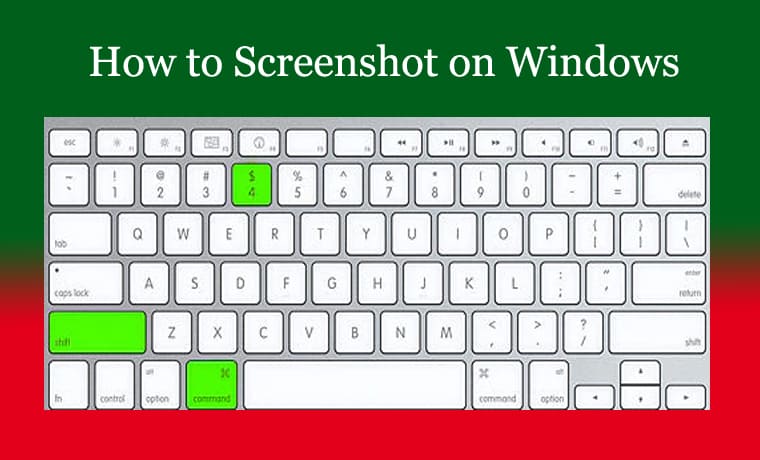
How to Screenshot on Windows? A Complete Step-by-Step Guide
Taking screenshots is one of the most useful features on any computer. Whether you want to capture an error message, save important information, or share a funny moment on your screen, knowing how to screenshot on Windows can make your life easier. Fortunately, Windows offers multiple ways to take a screenshot, and you don’t need to install any special software. In this article, we’ll guide you through different methods of capturing your screen, saving images, and even editing them quickly.
Why Learn How to Screenshot on Windows?
Screenshots are essential for:
- Saving information quickly without writing it down.
- Sharing step-by-step instructions with friends or colleagues.
- Capturing online receipts or transaction records.
- Recording errors to show technical support.
- Creating tutorials or presentations.
Learning how to screenshot on Windows helps you use your computer more efficiently in work, study, and daily life.
Different Methods: How to Screenshot on Windows
Windows provides several built-in methods to capture your screen. Here’s a detailed look at each one:
1. Using the Print Screen (PrtScn) Key
- Press the PrtScn key on your keyboard.
- This copies the entire screen to your clipboard.
- Open Paint, Word, or any image editor and press Ctrl + V to paste the screenshot.
- Save the file in your preferred format (PNG, JPG, etc.).
This is the simplest way if you just want a quick copy.
2. Alt + Print Screen
- Press Alt + PrtScn.
- This captures only the active window instead of the whole screen.
- Paste it into Paint or another editor with Ctrl + V and save.
Perfect when you want only one app window and not the entire desktop.
You May Like: What is My IP Address?
3. Windows Key + Print Screen
- Press Windows Key + PrtScn.
- The entire screen will be captured and automatically saved as an image.
- Find it in the Pictures > Screenshots folder.
This method is fast and saves screenshots without needing to paste them.
4. Snipping Tool (Windows 7, 8, 10)
The Snipping Tool allows you to take custom screenshots.
- Open the Snipping Tool from the Start menu.
- Click New and drag your mouse to select the area you want to capture.
- Save the screenshot as an image file.
5. Snip & Sketch (Windows 10 & 11)
A modern replacement for the Snipping Tool:
- Press Windows Key + Shift + S.
- Select from four options: rectangle snip, freeform snip, window snip, or full-screen snip.
- The screenshot is copied to your clipboard, and you can paste or save it.
6. Game Bar (Windows 10 & 11)
The Xbox Game Bar is mainly for recording gameplay but also works for screenshots.
- Press Windows Key + G.
- Click the camera icon or press Windows Key + Alt + PrtScn.
- Screenshots are saved automatically in the Videos > Captures folder.
7. Third-Party Screenshot Tools
If you want advanced features like instant editing, annotations, or sharing, you can use third-party tools such as:
- Lightshot
- Greenshot
- ShareX
- Snagit
These offer more control and professional features beyond the built-in Windows tools.
How to Edit a Screenshot on Windows
After learning how to screenshot on Windows, you might want to edit your captures:
- Open the screenshot in Paint or the Photos app.
- Use tools to crop, draw, highlight, or add text.
- Save the edited screenshot in the desired format.
Tips for Better Screenshots
- Use Alt + PrtScn to capture only what you need.
- Save screenshots in PNG format for better quality.
- Use Snip & Sketch for quick annotations.
- Organize your screenshots in folders for easy access.
Frequently Asked Questions (FAQs)
Q1. How to screenshot on Windows without the Print Screen button?
You can use Windows Key + Shift + S to open Snip & Sketch, or the Snipping Tool to capture your screen.
Q2. How to screenshot on Windows 10?
Press Windows Key + PrtScn to automatically save a screenshot in the Pictures > Screenshots folder.
Q3. How to screenshot on Windows 11?
Windows 11 also supports Windows Key + Shift + S for Snip & Sketch, giving you more flexibility in capturing.
Q4. How to screenshot on Windows laptop?
Most laptops require pressing Fn + PrtScn or Windows Key + PrtScn depending on the keyboard layout.
Q5. How to screenshot a specific area on Windows?
Press Windows Key + Shift + S and drag the cursor to select the desired portion.
Q6. How to find my screenshots on Windows?
They are usually saved in the Pictures > Screenshots folder, unless you paste and save them manually.
Q7. How to edit screenshots on Windows?
You can use Paint, Photos, or Snip & Sketch to crop, annotate, and highlight parts of the screenshot.
Conclusion
Knowing how to screenshot on Laptop is a basic but powerful skill that helps in work, study, and personal use. Whether you prefer the simple Print Screen key, the versatile Snip & Sketch, or advanced third-party apps, Windows provides multiple options to capture your screen. Once you master these methods, you’ll be able to take, edit, and share screenshots quickly and easily. 0 0 0
We’d Love Your Feedback
Did this guide help you understand how to screenshot on Windows more easily? We’d love to hear your thoughts! Share your experience in the comments—whether you used the Print Screen key, Snip & Sketch, or another method. Your feedback not only helps us improve but also supports other readers looking for simple ways to learn how to screenshot on Windows. Don’t forget to share this article with friends or colleagues who might find it useful. 0 0 0